
What to expect: your first restore
A restore is the recovery journey walked end to end: you pick a sealed run to recover to, choose how wide the write goes, and read a dry-run plan the engine verifies before anything is written. Everything up to the apply is read-only. The apply is the one act that writes archived data back into your live account, and the engine does not roll it back. This page walks you through what each screen shows, so the day you actually need it holds no surprises.
The whole flow follows one rule: nothing is written until you have read exactly what would be written. When an owner turns on dual control, a distinct second person must also approve it. The dry-run preview is open to any role, so you can read the full plan without holding the authority to apply it. That property is the reason the flow has the shape it does, so it is worth keeping in mind as you go.
What you will do, in one line
You open the restore screen, pick the run to recover to and choose the blast radius, then build a dry-run plan the engine verifies read-only. Applying that plan is a separate, gated act, so reading the plan never risks a write.
This walkthrough shows the standard restore screen, which needs your engine to hold an operational read-back key. If you kept the default break-glass-only posture from the key ceremony, your engine holds no such key: building a plan on this screen returns a break-glass-only message instead of the plan below. Restore either from the break-glass restore panel in your browser, or offline with the downpipe CLI; see recovery: restore, prove recoverability, and break-glass for both paths.
Start the restore and choose the blast radius
The screen opens on a form that writes nothing on its own. Opened for a specific run, it builds that run’s read-only dry-run plan at once. You name the run to recover from and choose how wide the restore reaches.
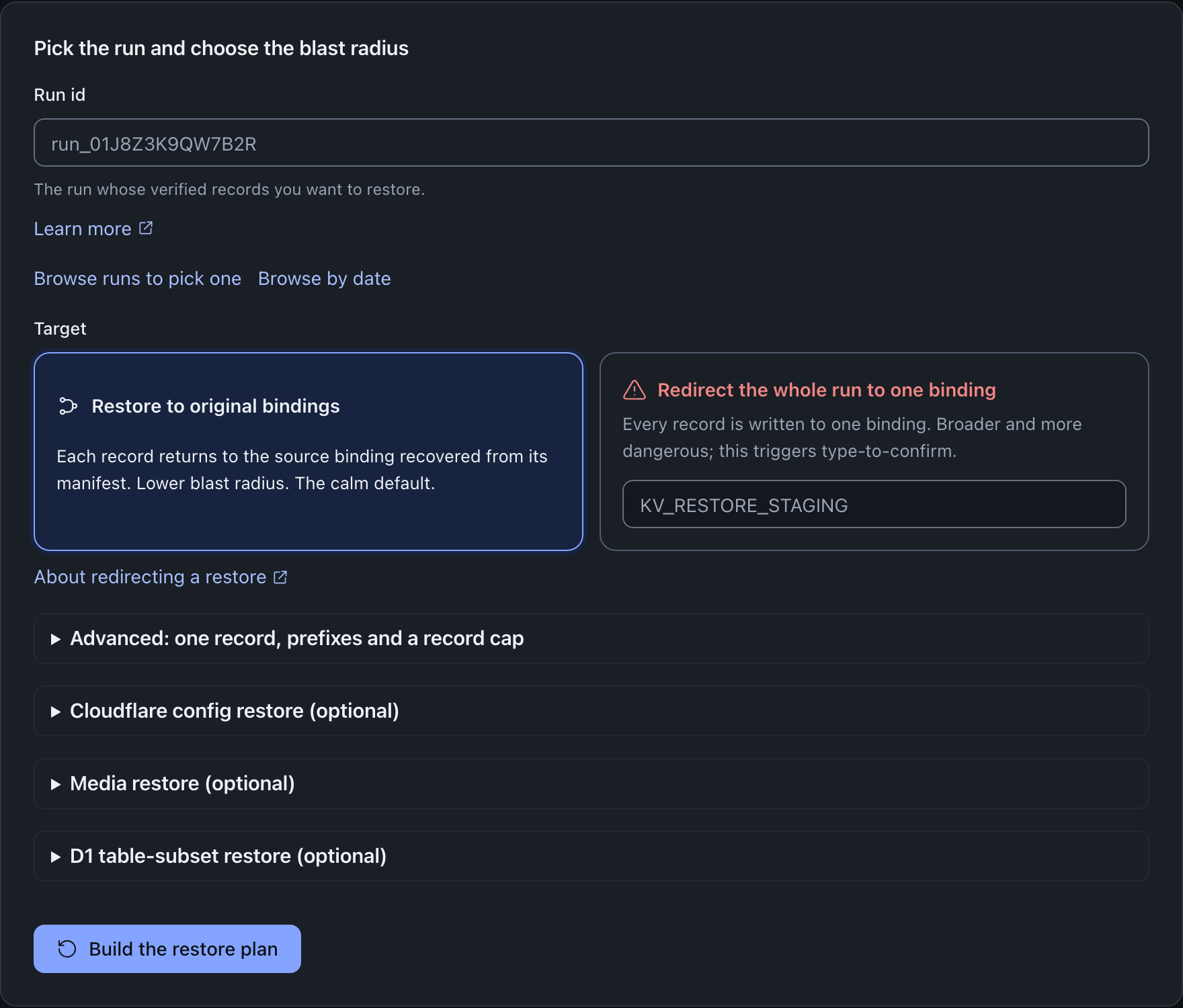
What it means. The blast radius is the key choice here. Restore to original bindings is the calm default, where each record returns to the source it was captured from. The deliberate wider option is Redirect the whole run to one binding, and choosing it escalates the later confirmation to type-to-confirm. The collapsed sections beneath narrow the scope: a single named record, key prefixes with a record cap, or a D1 table-subset restored into a fresh database. Two more sections add optional Cloudflare-config and media legs.
What to do. Leave the target on original bindings unless you specifically need a redirect. If you already know the run id, type it; otherwise pick one with the two browse buttons, described next. Arriving cold at the restore screen with no run id, they lead the card and read Choose from recent runs and Browse by date. The figure above shows the second case: arriving with a run already in hand, the run id field leads and the first button reads Browse runs to pick one.
Pick the point in time to recover to
Selecting a run is how you choose the moment you are recovering to. From console 0.2.7, the picker lists up to 40 of your recent sealed runs, newest first, drawn from the bounded run-history ring.
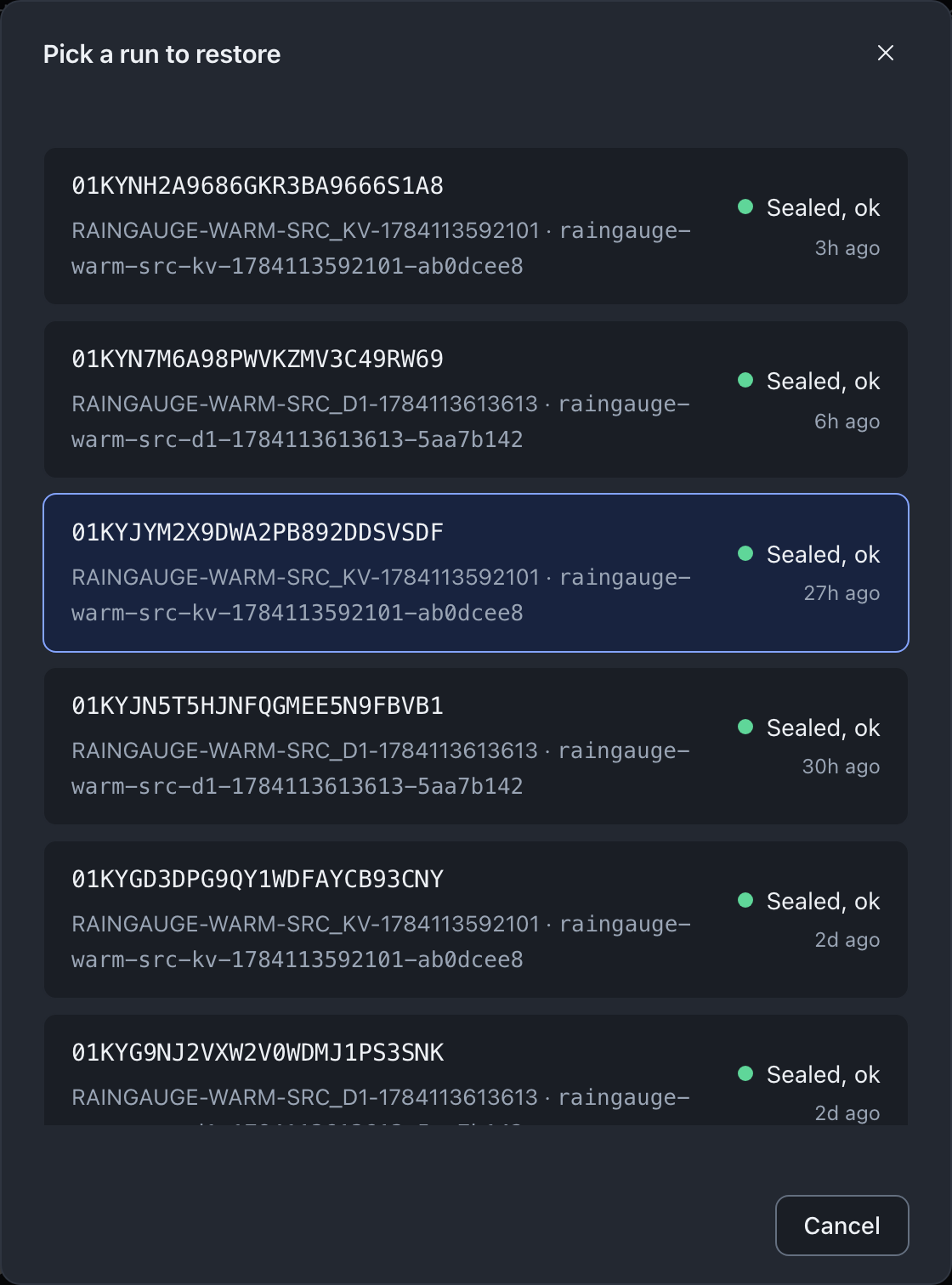
What it means. Each row is one point in time, with its sealed status and how long ago it ran. Choosing a run writes nothing and, on an otherwise empty form, opens that run’s read-only dry-run plan. If the form holds other input, or the browser kept a scope for that run from an earlier visit, it only sets the run id. The Browse by date button shows the same history as a calendar, for when you are recovering to a particular day. You are never restoring to an arbitrary moment; every choice resolves to one specific run.
What to do. Pick the run that holds the state you want back. If the run you need has rolled off the recent ring, type its run id on the form instead, since a restore works from any run id, not only the ones listed here.
Confirm which sealed run you are recovering from
Opening a run shows its detail beside the flow, so you can confirm you have the right point in time before you build a plan.
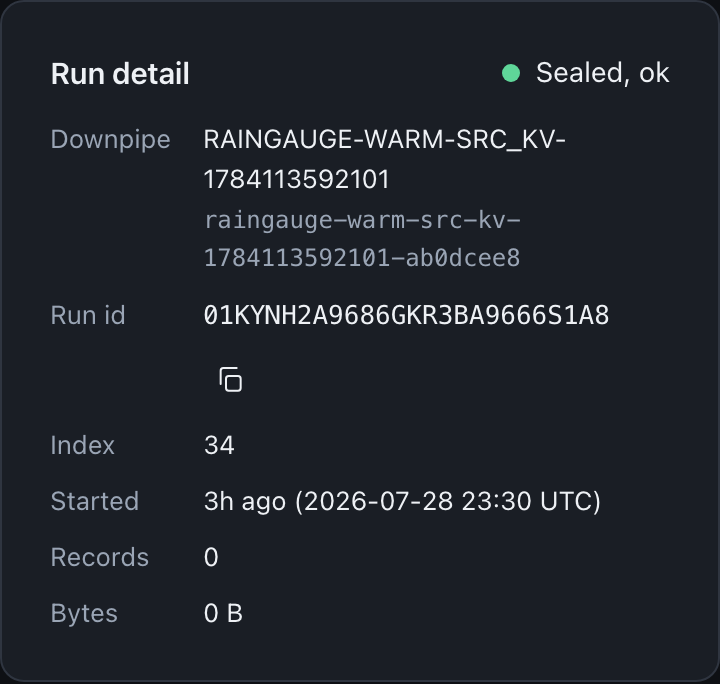
What it means. The card names which downpipe the run belongs to and when it started, with the record and byte counts it holds. These are the run’s own figures, read from your history, so the size and freshness on screen are the real run, not an estimate. The status reads Sealed, ok for a clean run; a failed run is labelled as such and can still be drilled, or restored from a prior good run.
What to do. Check the run detail matches the run you had in mind, its downpipe and its age, then build the plan.
The dry-run plan: read before anything is written
Building the plan asks the engine for the restore with its write flag off, so the engine verifies the run without writing. It opens every in-scope record read-only and checks each record’s plaintext hash against the signed manifest, then reports what it found: how many records it verified, how many it would write on apply, an upper bound on the bytes, and whether this is the latest run or an older one. A sample of the resolved destinations shows where each record would land. Anything the engine cannot write back in account, such as a Secrets Store value or a Workers script, is listed as skipped with guidance: it is not dropped silently. The plan closes by stating that every record was opened read-only and its hash verified, and that nothing has been written yet.
Because the dry-run writes nothing, the engine offers it to any authenticated role. You can read the entire preview on a view-only role and still be unable to apply it, the whole point of separating reading from writing.
The apply is the one gated act
The apply is the only step that writes archived data back. The console mirrors the engine’s gate exactly: an apply needs the restore.apply capability. When an owner turns on dual control, it also needs an approval bound to the exact plan. A distinct person from the one who requested it must sign that approval.
On a view-only role the confirm panel states that you can preview the plan but cannot request or apply a restore. On a role that can apply, with dual control on, the button stays locked until a separate approver signs that same plan. The engine verifies integrity in two phases before any byte lands, aborting the whole apply on a single failure rather than half-overwriting a live resource. The receipt then records how much was written and names the applier, and the approver when one signed.
A restore cannot be undone
Once an apply begins writing there is no rollback. You cannot cancel the apply after it starts. The engine does not roll back records that it has written. Read the dry-run plan carefully before you arm an apply, and prefer restoring into a fresh empty target where you can. This walkthrough ends at the preview.
Where this fits
The restore flow, end to end walks the same journey through to the receipt, including the dual-control request and approval. The mechanic that approval depends on, with the maker-is-not-checker rule, is dual control. For what a restore will and will not put back, in the in-account and out-of-band data classes, see what restore can and cannot write back.
Last updated .